
Free Online Photo Resizer
Resize photos and images by pixels or percentage, compress file size, and export as JPG, PNG, or WebP. No signup, no server uploads.
Upload your images
JPG, PNG, WebP, HEIC supported. Max 10 images.
One-Click Sizes for Every Platform
Skip the guesswork. Pick a preset and the photo resizer applies the exact dimensions each platform requires.
Instagram Post
1080 × 1080
Instagram Story
1080 × 1920
YouTube Thumbnail
1280 × 720
Facebook Cover
820 × 312
LinkedIn Banner
1584 × 396
Profile Photo
400 × 400
Website Hero
1200 × 600
Email Attachment
Under 1MB
Pinterest Pin
1000 × 1500
X/Twitter Post
1200 × 675
Etsy Listing
2000 × 2000
Passport Photo
600 × 600
How to Resize Photos in 3 Easy Steps
Upload, adjust, download. The whole process takes seconds.
Upload Your Photos
Drag and drop up to 10 images. Supports JPG, PNG, WebP, and HEIC formats.
Choose Size and Compression
Pick a preset, type exact pixels, or adjust quality. The photo resizer previews results before you commit.
Download Resized Images
Get individual files or a single ZIP. Original quality preserved where possible, file size reduced where needed.
Who Uses This Photo Resizer
Built for anyone who needs photos and images at the right size, from social media managers to everyday users uploading forms.
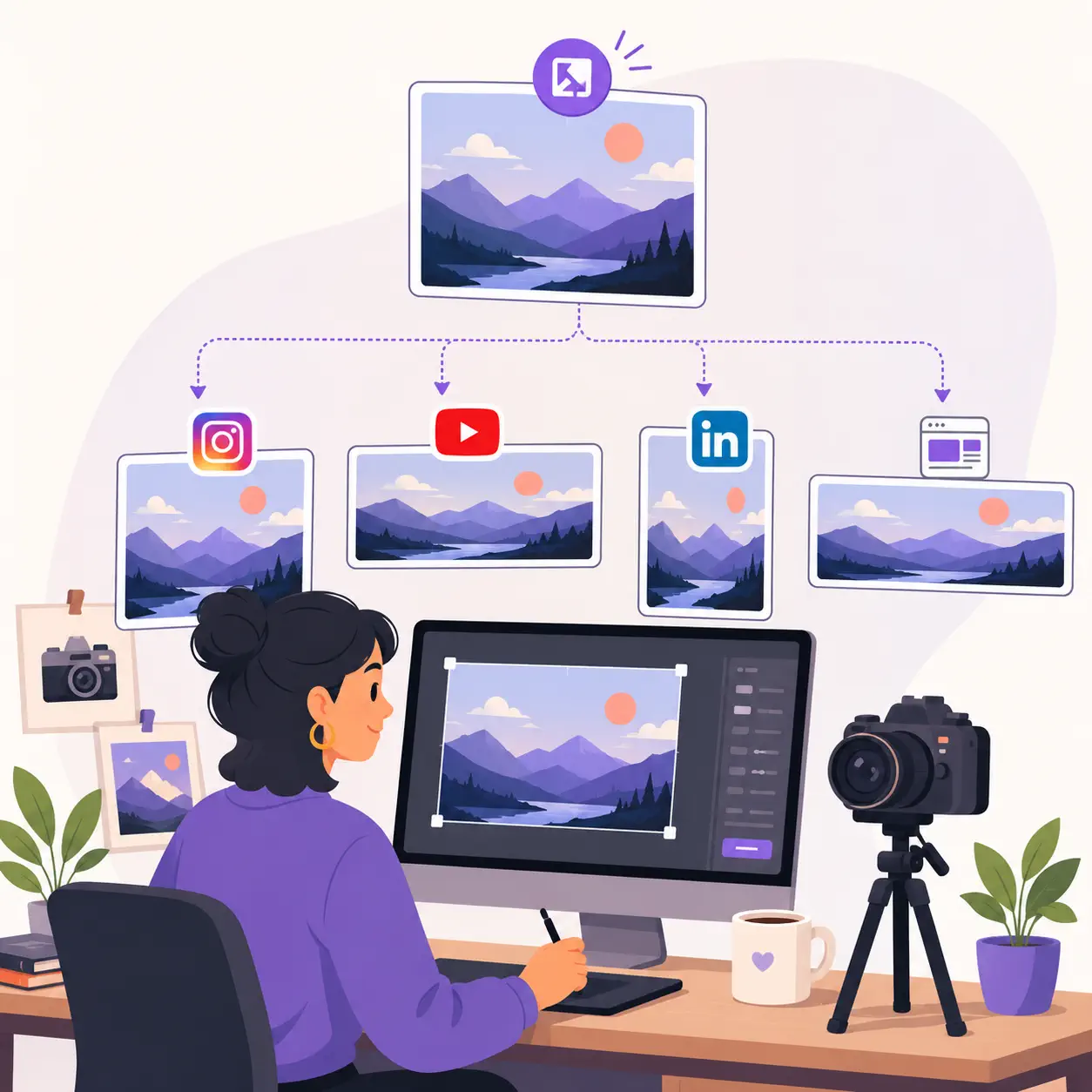
You shoot once, then need the same image at five different sizes for Instagram, YouTube, LinkedIn, and your blog. This photo resizer handles all of them in one batch.
Resize and Compress in One Step
Most photo resizers only change dimensions. Most compressors only shrink file size. This image resizer handles both at once, so you upload once, adjust once, and download once.
Resize by Percentage or Exact Pixels
Scale photos down by 25%, 50%, or 75%. Or type a specific width and height. Aspect ratio stays locked unless you choose otherwise.
Compress with Quality Control
Adjust the quality slider to find the sweet spot between file size and visual clarity. The photo resizer shows you the result instantly so you can decide before downloading.
Batch Resize Up to 10 Photos at Once
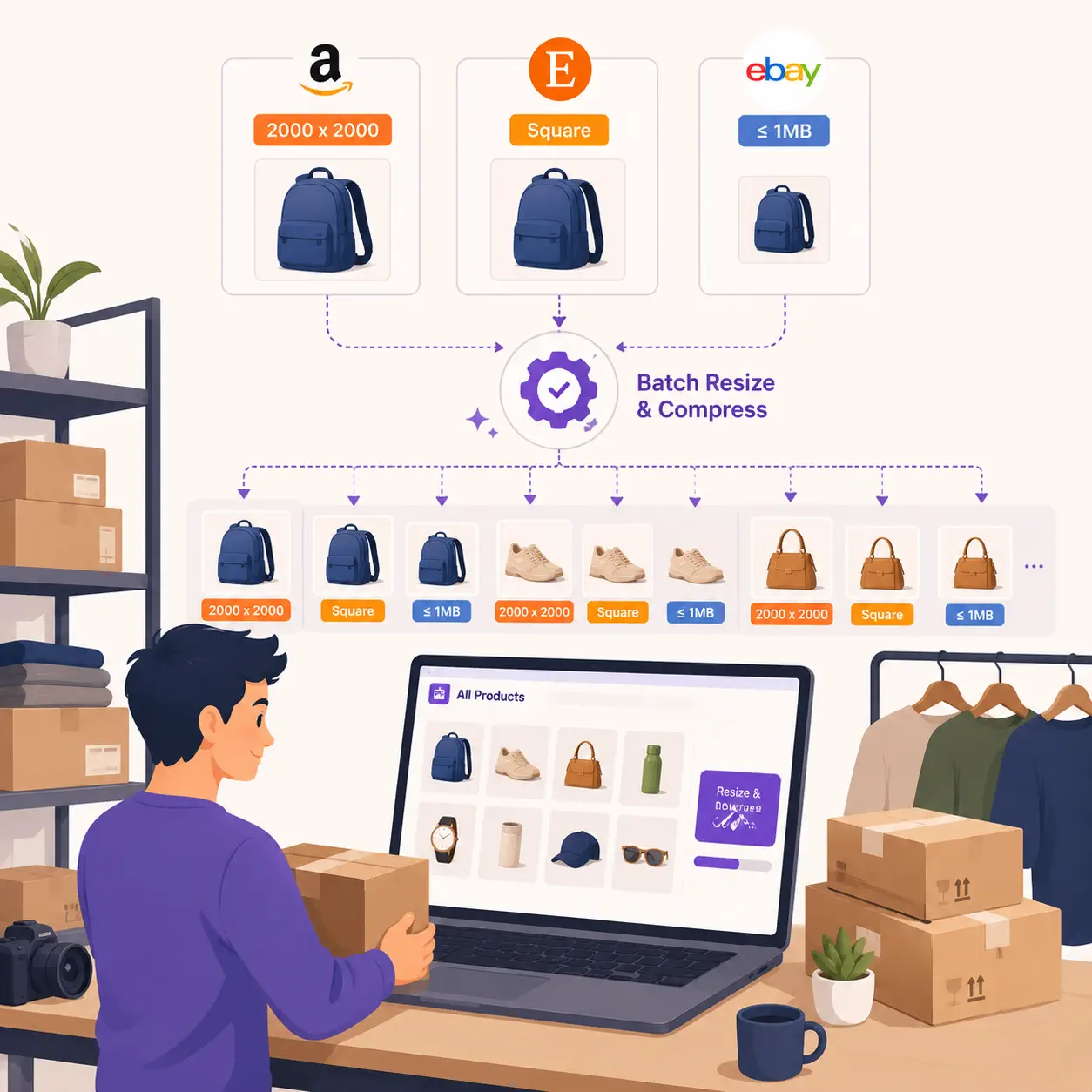
Drop up to 10 photos in one go. Apply identical settings to all of them and download a ZIP. This image resizer handles batches in seconds, not an afternoon.
Export as JPG, PNG, or WebP
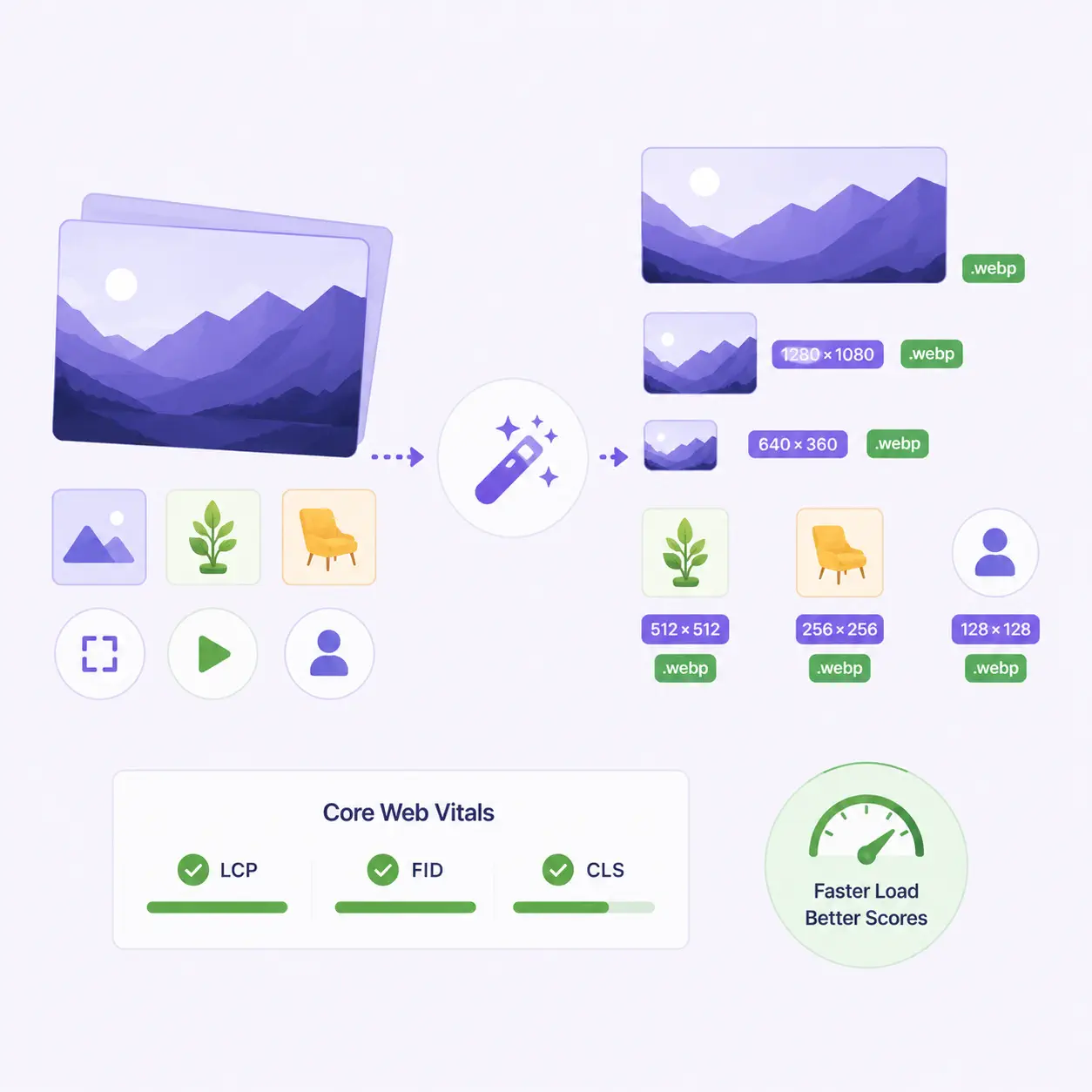
Pick the output format that fits your use case. WebP for websites, PNG for transparency, JPG for universal compatibility. Convert formats while resizing.
Social Media Presets Built-In
One-click presets for Instagram, YouTube, LinkedIn, Pinterest, and more. The photo resizer applies the exact dimensions each platform requires.
Complete Privacy Protection
Images never leave your device. All resizing and compression happens locally in your browser. Unlike other image resizers, there are no uploads, no data collection, and no privacy risks.
Photo Resizer vs. the Alternatives
Quick comparison so you can pick the right tool for the job.
More Image Tools
After resizing, try these free tools to merge, split, and convert your images.

Merge JPG to JPG
Combine multiple JPG images into one file with flexible layouts. Perfect for collages, comparisons, and product showcases.
Merge JPG to PDF
Convert and combine JPG images into a single PDF document. Ideal for scanned pages, portfolios, and presentations.
Split Image
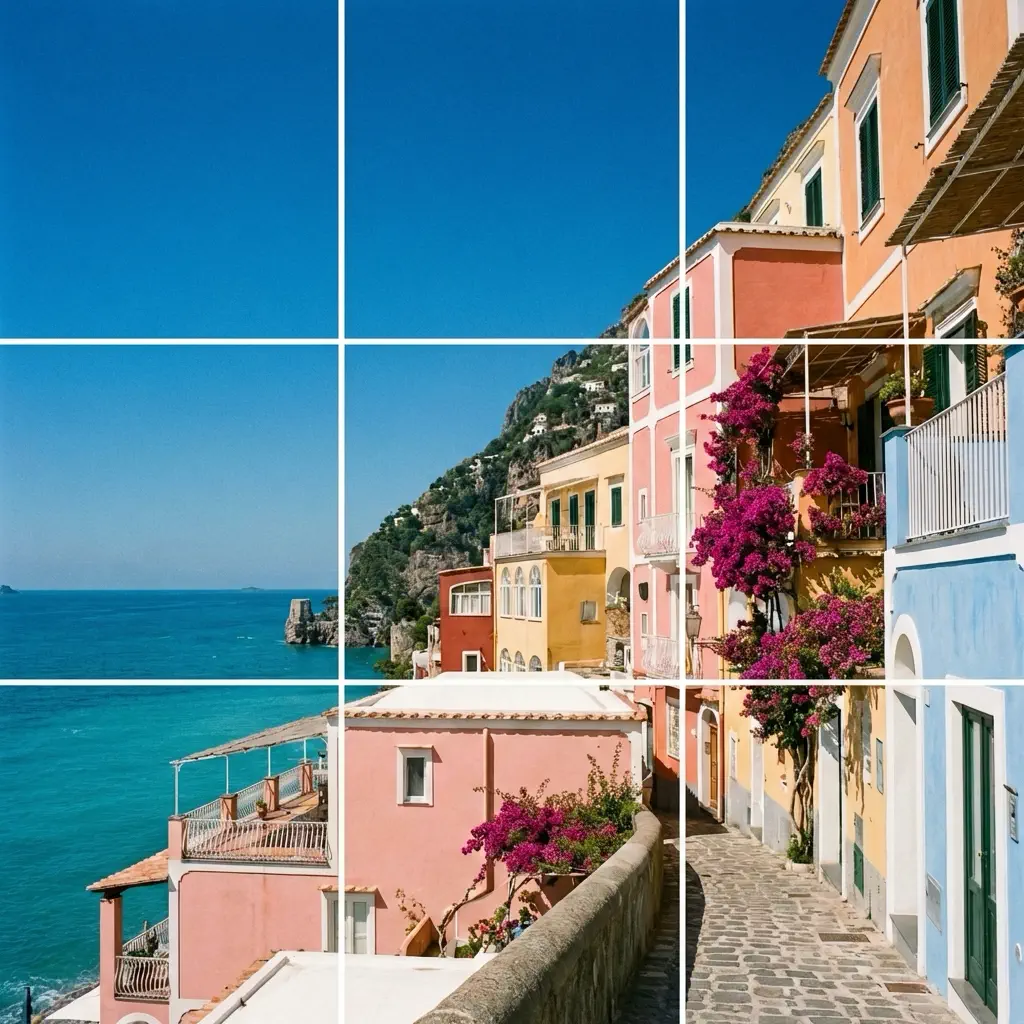
Split one photo into a grid of tiles for Instagram carousels, printing, or creative layouts.
Frequently Asked Questions About Photo Resizing
Common questions about resizing, compressing, and exporting photos with this free online tool.
What is a photo resizer?
A photo resizer (also called an image resizer) is a tool that changes the pixel dimensions of your images. This one also compresses file size and converts formats, so you get upload-ready photos in one step instead of using multiple tools.
Can I resize photos without losing quality?
When you make an image smaller, quality stays sharp because you're discarding pixels, not stretching them. Our image resizer preserves maximum quality at each size. Only extreme compression or enlarging beyond original dimensions causes visible loss.
Can I resize multiple photos at once?
Yes. Drop up to 10 photos at once, apply the same resize and compression settings, and download all results as a ZIP. Every image gets identical treatment.
How do I reduce photo file size?
Use the quality slider to lower compression quality — a small reduction (e.g., 80%) often cuts file size in half with no visible difference. Combine it with a percentage resize for even smaller files.
Is this photo resizer really free?
Yes, completely free for everyday resizing. No watermarks on output, no signup required, no trial period. The tool runs in your browser and costs nothing to use.
Are my photos uploaded to a server?
No. All processing happens locally in your browser. Your photos never leave your device. You can disconnect from the internet after the page loads and the photo resizer still works.
What file formats does the photo resizer support?
Input: JPG, PNG, WebP, and HEIC (iPhone photos). Output: JPG, PNG, or WebP. You can convert between supported formats while resizing.
Can I use this photo resizer on my phone?
Yes. The interface is fully responsive. Upload from your camera roll, choose settings with touch-friendly controls, and download resized photos directly to your device.
What's the difference between resizing and compressing?
Resizing changes the pixel dimensions of your image (e.g., 4000×3000 down to 1080×810). Compressing reduces the file size without changing dimensions (e.g., 8MB down to 500KB by adjusting quality). This tool does both in one step.
Which output format should I choose?
Use JPG for photos and universal compatibility. Use PNG when you need transparency or lossless quality. Use WebP for the smallest file sizes on websites. The photo resizer lets you convert between all three while resizing.
How do I resize a photo to passport size?
Select the Passport Photo preset (600×600) or type your country's exact requirements. The photo resizer crops and scales to fit, so your photo meets official specifications without manual editing.
Can I get a photo under 100KB or 50KB for an upload form?
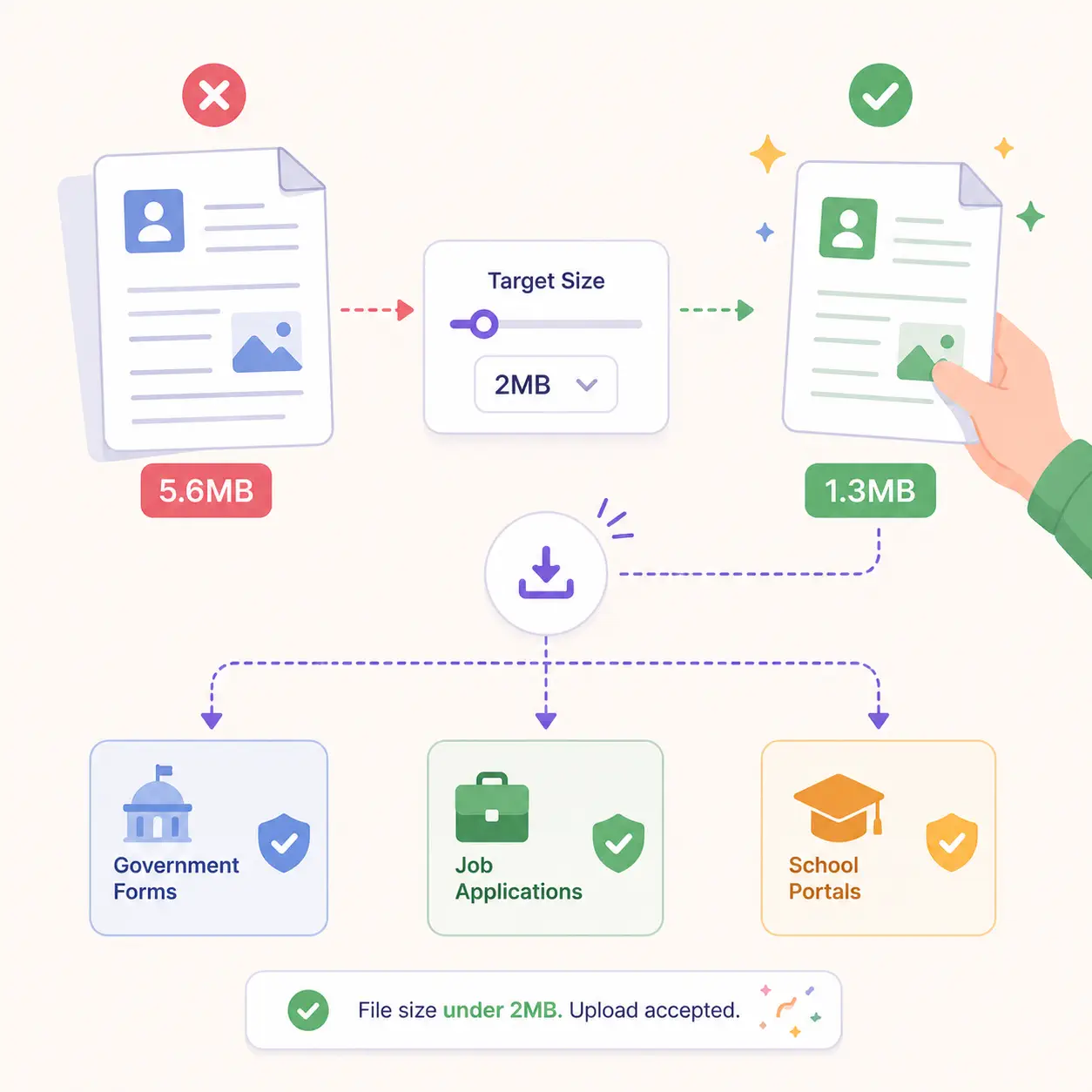
Yes. Reduce the percentage (e.g., 50%) and lower the quality slider until the output size meets your requirement. The photo resizer shows the resulting file size before you download, so you can fine-tune without guessing.
Your Next Upload Is Waiting. Make It Fit.
Stop bouncing between resize tools, compressors, and format converters. One upload, one workflow, done. Free forever, no signup, no watermarks, complete privacy.